Go back

How to scan qr code from screenshot, this is how you do it!

You’re seeing them more and more often online — QR codes. Sometimes they’re shared for a promotion, a link to a website, or a digital business card. You’ll spot them on websites, in your social media feed, or even shared via WhatsApp.

But what can you do when a QR code appears on your screen? Most of us already know how to scan a QR code — usually with your phone’s camera app or a barcode scanner app. However, scanning an image works a bit differently. There are several ways to scan a QR code (Quick Response) that appears as an image on your screen.

Step 1 – Take a screenshot of the QR code

To scan a QR code from an image, you first need to save it to your phone. The easiest way to do this is by taking a screenshot. But how exactly do you do that? It’s quite simple — you just need to know how it works. Keep in mind that the process may vary slightly depending on your phone.

Take a screenshot on iPhone

Taking a screenshot on an iPhone is easy. On most recent models, simply press the side button and the home button at the same time, then quickly release them. A thumbnail of your screenshot will appear at the bottom of the screen.

Screenshot on iPhone 11 and newer

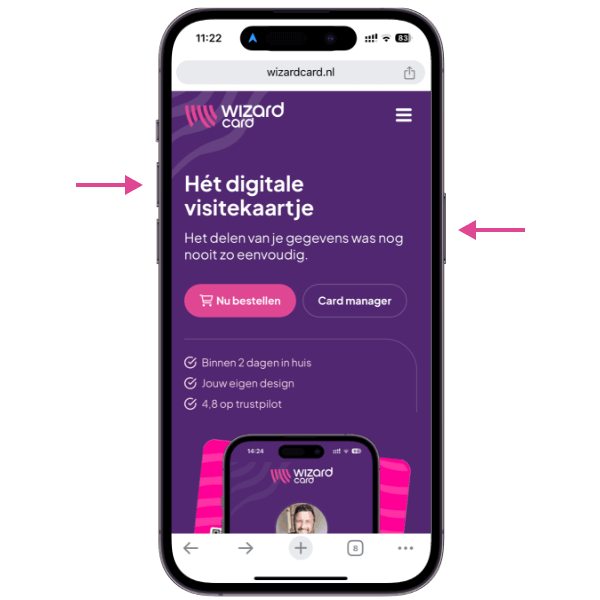
Each new iPhone model comes with a few small changes compared to the previous one. To take a screenshot on an iPhone 11 or newer, press the side button and the volume up button at the same time, and hold them briefly. Your screen will be captured automatically. Want to make edits? Just tap the screenshot preview to crop or adjust it before saving.

Screenshot iphone 14

Screenshot on iPhone 8 to 10

For older models like the iPhone 8, first open the screen you want to capture. Then press the sleep/wake button on the right side of your device and quickly tap the home button. The screen will flash — that means your screenshot has been taken!

Screenshot on Android phones

Because there are many different brands and types of Android devices, the method can vary slightly depending on your phone. Below are the two most common options. If neither works, check your phone manufacturer’s support page for specific instructions.

First, open the screen you want to capture.

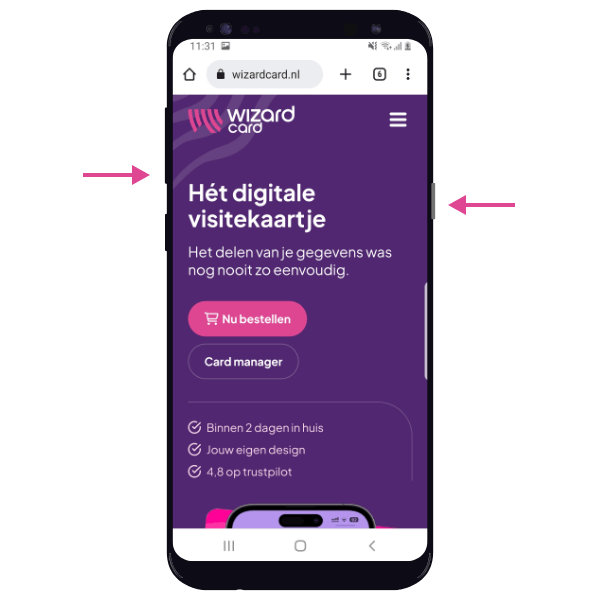
  • Option 1: Press the Power button and the Volume Down button at the same time.
  • Option 2: Press and hold the Power button for a few seconds, then tap Screenshot.
Screenshot Android samsung

Step 2 – Scanning a QR code from a photo on your phone

Whether you’ve taken a screenshot of a QR code or received one in a photo, here’s how to quickly and efficiently use it. We’ll walk you through the steps for both Android and iOS devices and share some useful tips to make the process even easier. Whether it’s a link to a website, a digital coupon, or contact information, this guide helps you scan QR codes from photos in no time.

iPhones

Since the release of iOS 15 (and now already iOS 17), you can scan QR codes not only with the Camera app but also directly from screenshots and photos in your photo library. To make this feature work properly, you’ll need to enable **Live Text**.

Live Text automatically recognizes information in your photos and makes it interactive. For example, if you take a picture of a business card, flyer, or information board, your iPhone can detect the text and turn it into usable content. This allows you to call a number, send an email, or look up an address directly by tapping the highlighted text in the photo.

Live Text also works within the Camera app — simply point your camera at text, and you can quickly copy it. However, Live Text officially supports only a few languages: Chinese, German, English, French, Italian, Cantonese, Portuguese, and Spanish. Fortunately, there’s a simple workaround to activate it in other languages.

Enable Live Text (iOS 16)

To activate Live Text, follow these steps:

  1. Go to Settings
  2. Tap General
  3. Tap Language & Region
  4. Add English as a second language
  5. Toggle on the Live Text option

Scan a QR code from a photo or screenshot

When you’ve taken a screenshot or received a photo containing a QR code, you can scan it by following these steps:

  1. Make sure that Live Text is enabled (see instructions above).
  2. Open the Photos app on your iPhone.
  3. Open the image that contains the QR code.
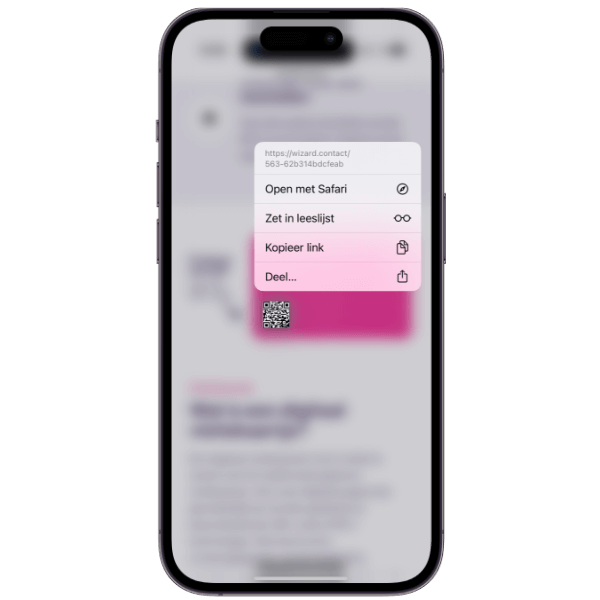
  4. Press and hold your finger on the QR code in the image.
  5. Select the top option: Open in Safari.
QR code scannen screenshot

Scan a QR code directly in Safari

If you come across a QR code in your browser or another app — and it’s displayed as an image — you can usually open the link right away. Here’s how to easily scan a QR code on your iPhone:

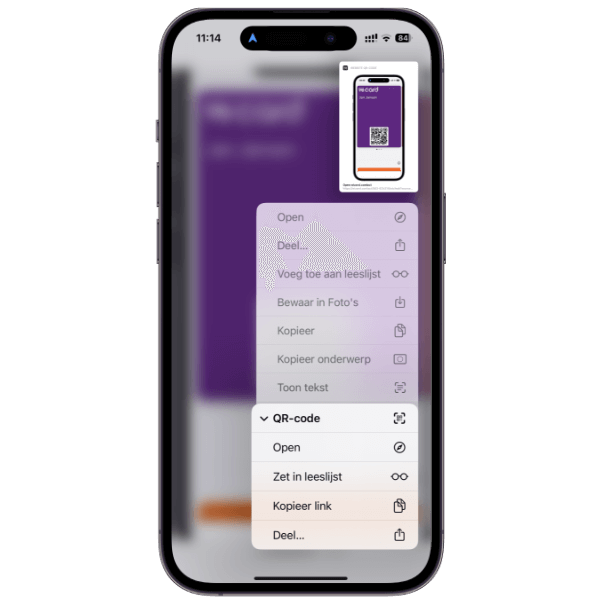
  1. Press and hold your finger on the QR code image.
  2. A menu will appear; choose the QR Code option.
  3. You’ll then see several possible actions. Most users will select Open, which will open the link in a new browser tab.
QR-code scannen Safari

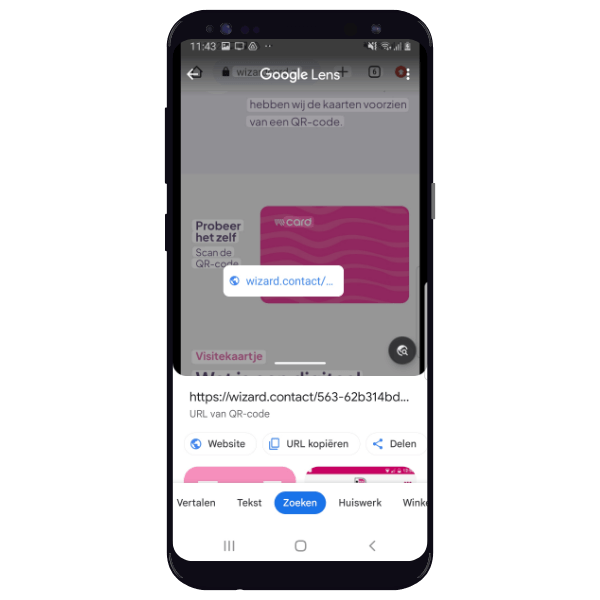
Google Lens (Android)

Google Lens is an image recognition technology developed by Google — and as the name suggests, it lets you literally *search what you see*. With Google Lens, you can not only scan images and text but also easily read QR codes.

One major advantage of this Google product is that it’s available for both Android and Apple users. The app is free to download from the Google Play Store and the Apple App Store. Here’s how it works:

  1. Open the Google Lens app.
  2. Tap the image gallery icon in the bottom left corner.
  3. Select the photo or screenshot.
    Tap on the image, and the app will automatically scan its contents.
  4. A link will appear that you can click to open.
google Lens

Conclusion

Scanning a QR code to open a URL and navigate directly to a webpage takes just a few simple steps. Whether you come across a QR code in an app, on a website, or as an image in your gallery, the easy scanning methods described in this article let you quickly and effortlessly access the information you need.

Remember, scanning a QR code with your phone is a convenient and efficient way to explore and interact with different types of digital content. With this knowledge, you can now use QR codes as a bridge between the physical and digital worlds, all in just a few quick steps.

Your own digital
visitekaartje

  • Delivered within 2 days
  • Your own design
  • Excellently rated